
Log your wines by telling Claude
Connect WineBudd to Claude. Then tell Claude what you’re drinking, or send a photo of the label. Claude adds the wine to your WineBudd journal. Later, ask Claude what you thought of it. Claude sees only your own journal, and only after you click Allow.
What you can ask
Type it the way you’d say it. If you don’t give a rating, Claude asks for one.
“Log the Penfolds Bin 389 2019 I’m drinking. Very good, lots of dark fruit.”
Claude adds it to your journal with the rating and your note.
“Here’s the label. Add this one as Good.”
Claude reads the name, year and type from your photo, then adds the wine.
“What did I think of the Cloudy Bay Sauvignon Blanc?”
Claude finds it in your journal and reads you your note.
“Which reds did I rate Outstanding this year?”
Claude searches your journal by type, rating and date.
How to connect
You need a WineBudd email and password. No account? Make one as you connect. Signed up with Apple or Facebook? Use Forgot password? to set a password.
Find WineBudd in Claude
In Claude, open Settings, then Connectors. Find WineBudd and click Connect.
Sign in
Sign in with your WineBudd email and password. No password, or forgot it? Tap Forgot password? on the same page. New to WineBudd? Create a free account there too. We email you a 6-digit code to confirm it.
Allow
WineBudd shows what Claude will be able to do. It can read and search your journal, and add new wines. Click Allow.
Ask Claude
Go back to Claude and tell it about a wine.
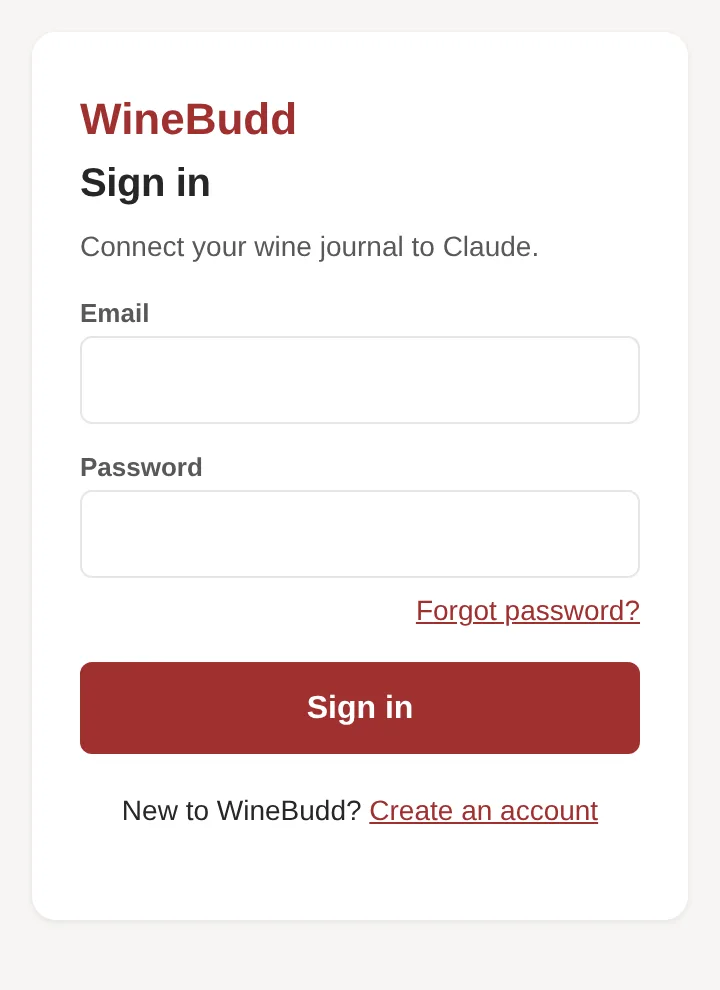
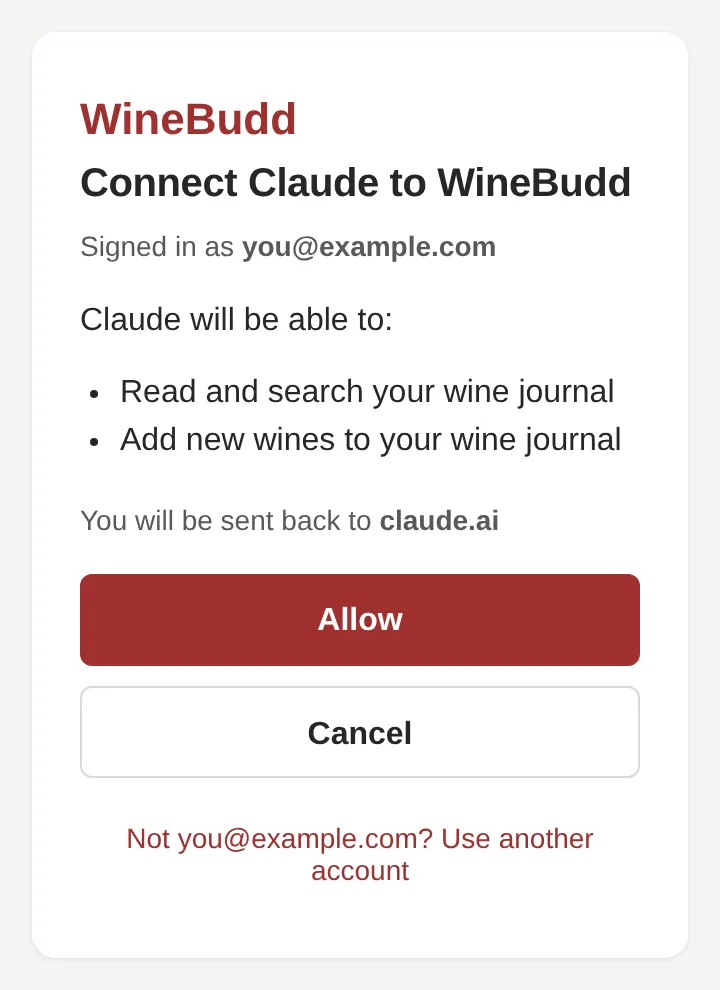
Steps 2 and 3, rendered from WineBudd’s connect pages. Step 3 shows a sample account.
What Claude can and can’t see
Claude can
- Read the wines in your journal: name, year, type, colour, country, region, rating, date, where you had it, price and currency, whether it was a gift, tasting details, aromas, flavours, observations and your note.
- Add a new wine when you ask it to.
Claude can’t
- Change or delete a wine.
- See your label photos.
- See anyone else’s journal.
- See your password.
Your journal stays private. Claude doesn’t share a wine for you. To share a note, use Share in the app.
How to disconnect
In Claude, open Settings, then Connectors, and disconnect WineBudd. Claude’s access stops, and your journal stays in WineBudd.
To delete your journal too, open the app, go to Profile and choose Delete Account. Or email us from the address you signed up with. Once your account is deleted, Claude can’t reach it.
Questions
Is it free?
Yes, up to 20 notes. That’s the app’s free limit too. Wines from the app and from Claude count together. At 20, Claude tells you. Upgrade in the WineBudd app to log more. Claude’s own plans are set by Anthropic.
Do I need the WineBudd app?
No. You can make an account and log wines from Claude alone. Every wine you log also shows up in the app on iPhone and Android.
Is my label photo saved?
No. Claude reads the label to fill in the wine. The photo stays in your Claude chat. To keep a label photo, add it in the app.
I use Apple or Facebook to sign in. Can I connect?
Yes. On the connect page, tap Forgot password? and enter the email shown on your Profile in the WineBudd app. If you hid your email with Apple, that’s Apple’s relay address, and your Profile shows it. We email you a code. Choose a password, then sign in.
I reset my password. Why did Claude stop working?
A reset on the connect page ends Claude’s access, in case someone else had your old password. Connect again in Claude and sign in with your new password.
What does WineBudd get from Claude?
Only each request, such as the wine to add or the words to search for. We don’t get your chats. See Using WineBudd with Claude in our privacy policy.